Mappings
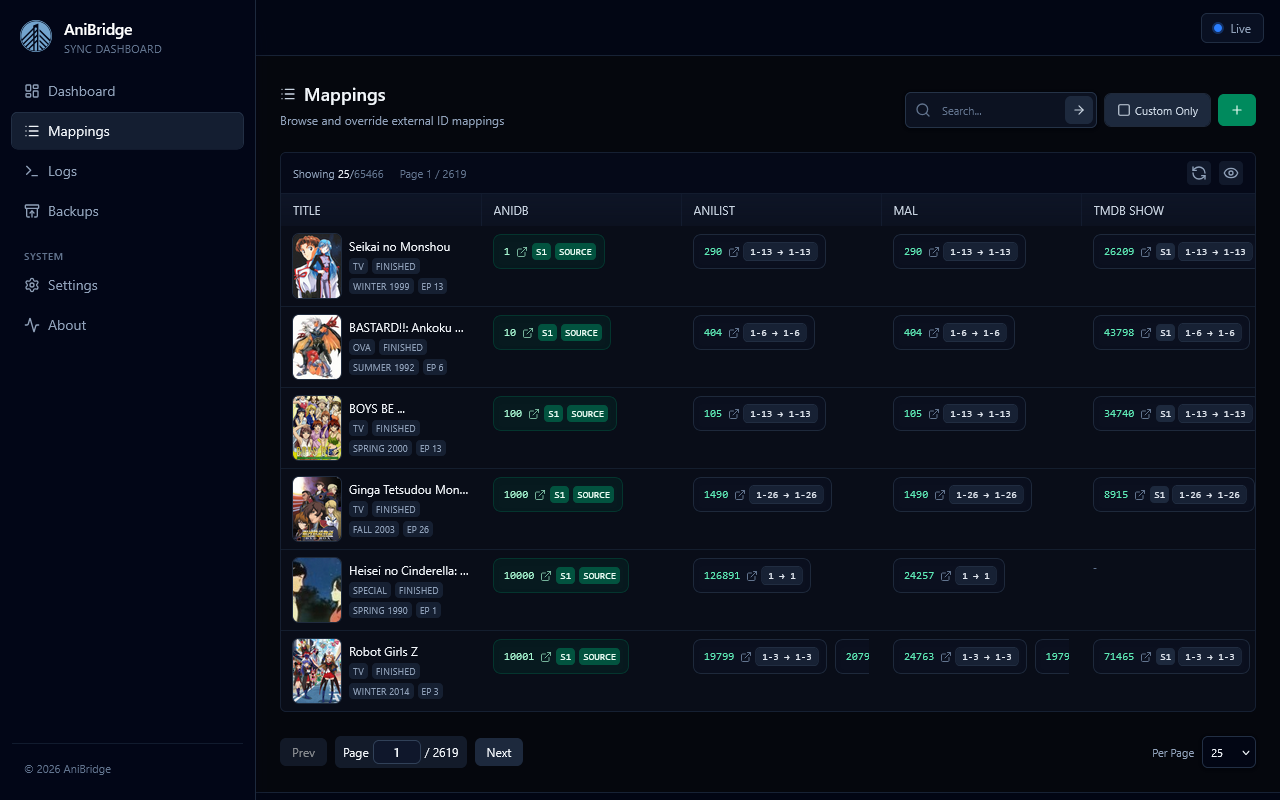
The mappings page lets you browse and manage the mapping database. You can search existing records with a powerful query language and manage mapping overrides.
Searching & Filtering
- The search bar uses the Mappings Query Language with autocomplete hints as you type.
- Press
Enteror click the search icon to run a query. - Toggle
Custom Onlyto limit results to entries sourced from your custom mappings.
Table Controls
- Column visibility can be set by clicking the eye icon popover; toggles persist in local storage.
- Drag column separators to resize widths as needed; column widths persist in local storage.
- Use
Show All,Hide All, or(reset)inside the eye icon popover to restore the default column layout. - Pagination controls (page navigation, per page size) sit at the foot of the table.
Editing & Creating Overrides
New Override(plus icon in toolbar) opens the editor with a blank template;Editin a row pre-fills fields from the current mapping.- Press "Reveret to Upstream" on any mapping to delete the override and restore the original as it exists in the upstream sources (note this requires refetching the upstream data).